
How to Securely Send a PDF: A 2026 Guide
Learn how to securely send a PDF with encryption and safe delivery methods. Protect your sensitive files with our 2026 guide!
July 5, 2026 · 9 min read

Securely sending a PDF is defined as encrypting the file with a strong password and transmitting it through a protected channel so only the intended recipient can open it. Email attachments are often unencrypted in transit, making file-level encryption the first line of defense for anyone sharing contracts, financial records, medical documents, or pitch decks. The industry standard for PDF encryption is AES-256, the same cipher used by governments and financial institutions. Knowing how to securely send a PDF means combining that file-level protection with a secure delivery method and a separately transmitted password.
How to securely send a PDF: tools you need first
The right tool determines whether your encryption is strong or just cosmetic. Adobe Acrobat Pro applies AES-256 encryption natively and gives you full control over permissions such as printing and copying. LibreOffice Draw handles PDF export with password protection at no cost. macOS Preview supports basic password encryption directly from the print dialog. Microsoft Word exports password-protected PDFs through its “Save As” function before you ever need a dedicated PDF editor.
Local encryption is the safest approach. Uploading a sensitive file to an unknown online converter means a third-party server processes your document before you can protect it. That exposure window is a real risk, not a theoretical one.

| Tool | Cost | Encryption standard | Local processing |
|---|---|---|---|
| Adobe Acrobat Pro | Paid | AES-256 | Yes |
| LibreOffice | Free | AES-256 | Yes |
| macOS Preview | Free (Mac only) | AES-128 | Yes |
| Microsoft Word (export) | Paid/subscription | AES-256 | Yes |
Password strength is the main security variable once encryption is applied. A minimum of 12 characters with a mix of uppercase letters, lowercase letters, numbers, and symbols is the baseline. Passphrases work better than random strings because they are long, memorable, and harder to crack by brute force.
Step-by-step: how to encrypt and password-protect your PDF
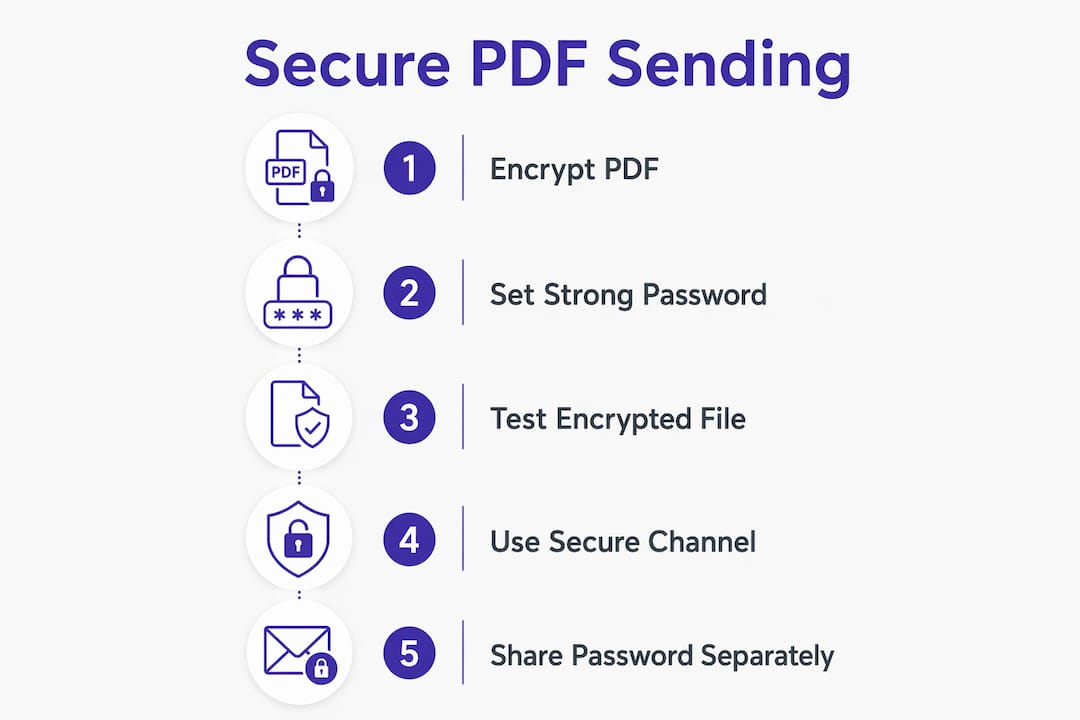
Encrypting a PDF takes under two minutes with the right tool. Follow these steps exactly and you will have a file that cannot be opened without the password.
- Open or create your PDF. In Adobe Acrobat Pro, go to Tools > Protect > Encrypt with Password. In LibreOffice, export to PDF and check “Encrypt the PDF document” in the export dialog. In macOS Preview, use File > Export as PDF and set a password.
- Set a strong password. Use a passphrase of at least 12 characters. Avoid names, dates, or dictionary words. A phrase like “BlueSky!River42Desk” is far stronger than “password123” and easier to remember than a random string.
- Save the encrypted file with a distinct name. Name it something like “contract_ENCRYPTED.pdf” rather than overwriting the original. Using distinct filenames prevents you from accidentally sending the unprotected version.
- Test the file on a separate device. Open the encrypted PDF on a different computer or phone before sending it. Confirm the password prompt appears and that the correct password opens the file. This step catches errors before the recipient encounters them.
- Send the encrypted file through your chosen channel. The file is now ready for transmission. The password travels separately, never in the same message.
Pro Tip: Generate your passphrase using three or four unrelated words joined by numbers and symbols, such as “Lamp9!CloudBridge.” This method produces high-entropy passwords that are genuinely difficult to crack and easy to recall.
The testing step is the one most people skip. Verifying the encrypted file before sending is the single fastest way to avoid the embarrassing and risky mistake of sending an unprotected original.
What are the safest ways to transmit an encrypted PDF?
Encryption protects the file. The transmission method protects the delivery. Both layers must be solid for the process to work.
Standard email without additional protection is the weakest option. Gmail’s Confidential Mode restricts forwarding and sets expiration dates, but it does not apply true end-to-end encryption to attachments. That means the file itself remains readable to Google’s servers and potentially to anyone who intercepts the message. Confidential Mode is a convenience feature, not a security standard.
Secure email providers such as ProtonMail apply end-to-end encryption to the entire message, including attachments. That is a meaningful upgrade for sensitive communications. The recipient needs a compatible email client or a one-time password to open the message.
Secure document sharing platforms offer the strongest combination of features. Link expiration and access controls significantly reduce unauthorized access compared to permanent cloud links. A platform that generates an expiring, password-protected download link adds a second security layer on top of the encrypted file itself. Audit trails show you exactly who accessed the document and when.
| Transmission method | End-to-end encryption | Link expiry | Audit trail | Forwarding control |
|---|---|---|---|---|
| Standard email (Gmail, Outlook) | No | No | No | No |
| Gmail Confidential Mode | No | Yes | Limited | Yes |
| Secure email (ProtonMail) | Yes | No | No | No |
| Secure document platform | Yes (in transit) | Yes | Yes | Yes |
Avoid permanent, publicly accessible links entirely. A Google Drive link set to “anyone with the link” gives you no control over who opens the file, when, or how many times. Platforms with automatic link expiry and access controls are the correct choice for anything sensitive.
Pro Tip: When using a secure document platform, set the link to expire within 48–72 hours of sending. That window gives the recipient enough time to download the file while limiting the exposure period.
How should you share the password with the recipient?
The password must never travel in the same message as the PDF. Sending the password in the same email thread makes the encryption pointless. If someone intercepts the email, they get both the file and the key to open it.
The correct approach is to use a completely separate channel for the password. Recommended options include:
- Phone call. Verbal delivery leaves no digital record and cannot be intercepted by email monitoring tools.
- SMS text message. A different infrastructure from email, which adds meaningful separation even if it is not perfectly secure.
- Encrypted messaging app. Signal uses end-to-end encryption for every message. It is the strongest option for transmitting a password digitally.
- Pre-shared password system. For repeat exchanges with the same person, agree on a rotating password scheme in advance. This eliminates the need to transmit a new password every time.
Passwords transmitted separately through phone calls, encrypted messaging apps, or text messages maintain the integrity of the encryption. The two pieces of information, the file and the key, must never share the same path.
Tell the recipient what to expect before you send anything. Let them know a password-protected PDF is coming and that the password will arrive through a different channel. Recipients who are not expecting an encrypted file sometimes delete it as spam or report it as suspicious.
Common mistakes to avoid:
- Sending the password as a reply in the same email thread
- Using a weak password like the recipient’s name or a date
- Forgetting to test the encrypted file before sending
- Sharing the file via a permanent, unprotected cloud link
- Skipping the expiry setting on a shared document link
Key Takeaways
Securely sending a PDF requires encrypting the file with AES-256, transmitting it through a protected channel, and delivering the password through a completely separate method.
| Point | Details |
|---|---|
| Encrypt locally first | Use Adobe Acrobat, LibreOffice, or macOS Preview to apply AES-256 encryption before uploading or sending. |
| Use a strong password | Set a passphrase of at least 12 characters with mixed characters to maximize encryption strength. |
| Test before sending | Open the encrypted file on a separate device to confirm the password prompt works correctly. |
| Choose secure transmission | Use a secure document platform with link expiry and audit trails rather than standard email. |
| Separate the password | Send the password through a phone call, Signal, or SMS. Never include it in the same message as the PDF. |
What most guides get wrong about sending secure PDFs
The standard advice is to encrypt your PDF and call it done. That is only half the job, and the half that fails most often is the delivery side.
I have seen founders send a beautifully encrypted pitch deck and then paste the password directly into the follow-up email. The encryption was technically correct. The delivery was not. Anyone who intercepted that email thread had everything they needed to open the file.
The two-layer approach, encrypting the file and using a platform with expiring links, is not paranoia. It is the only method that protects against two distinct failure points: the file being intercepted and the link being shared beyond the intended recipient. Two independent security layers guard against single points of failure. One layer failing does not compromise the other.
The other mistake I see constantly is skipping the test. People encrypt a file, send it, and then get a panicked message from the recipient saying it will not open. Either the wrong file was attached, or the password was typed incorrectly during encryption. Testing on a separate device takes 60 seconds and eliminates that problem entirely.
Compliance standards also matter here. Regulations require encryption of sensitive data both at rest and in transit. If you are sending anything covered by HIPAA, GDPR, or financial regulations, file-level encryption plus a secure transfer protocol is not optional. It is the minimum standard.
The habit worth building is treating every sensitive PDF as if it will be intercepted. Encrypt it. Use a platform with expiring links. Send the password separately. That sequence takes less than five minutes and closes the gaps that cause real data breaches.
— Paul
BabyLoveRaise and secure document sharing for founders
Sending a pitch deck securely is a specific problem. You need the investor to open it, but you also need to know when they did, how far they read, and whether the file was forwarded beyond the intended recipient.
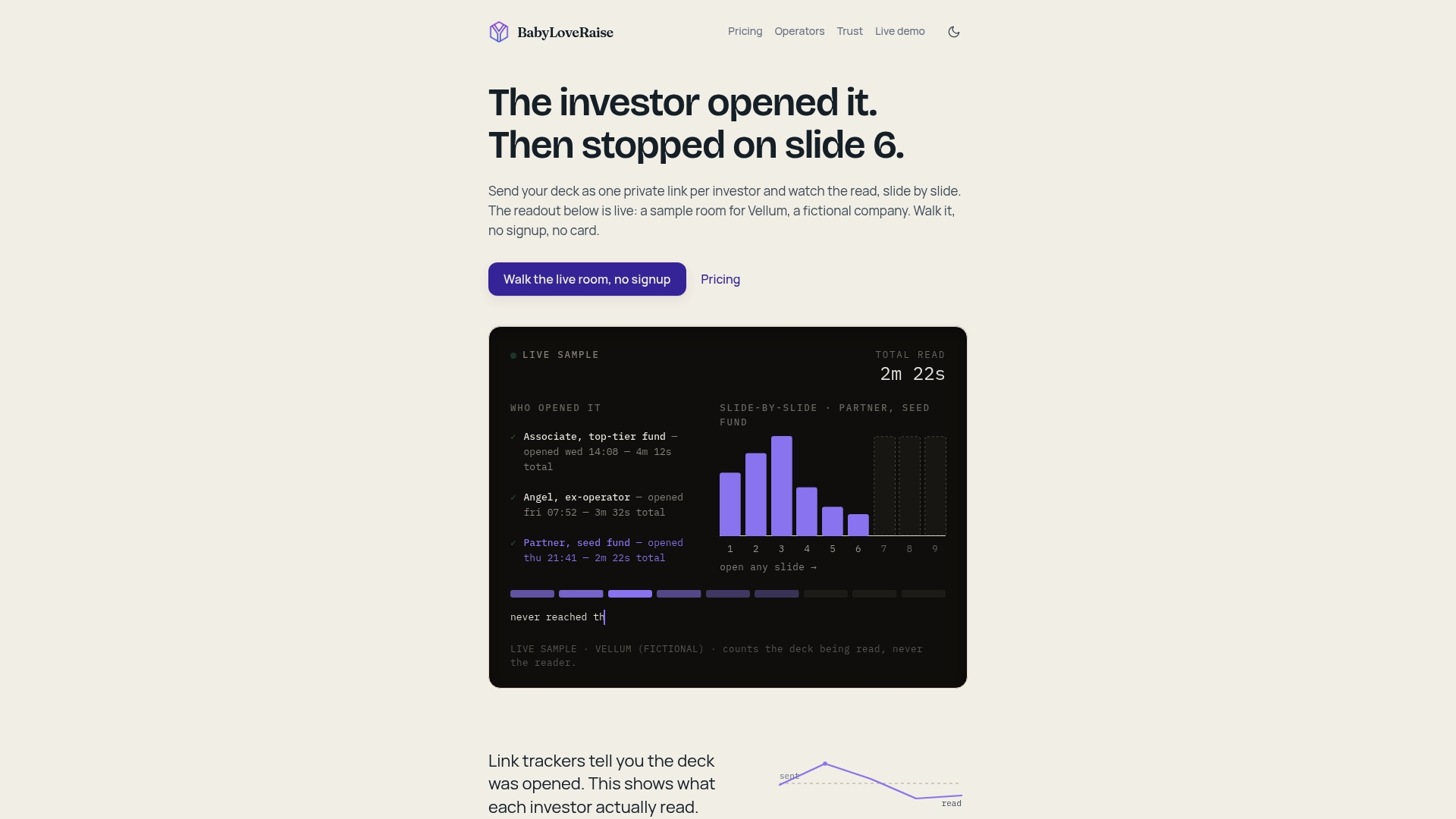
BabyLoveRaise is built around exactly that workflow. Each raise room generates a controlled share link with three access registers: first send, forwardable, and private. Downloads carry a measured watermark. The platform records per-slide engagement so you know which slides held attention and which got skimmed. When your raise closes, the room converts to a permanent archive at no additional cost. For founders who need to send documents securely while staying informed about investor engagement, BabyLoveRaise replaces the blind PDF email with a tracked, controlled, and secure raise room.
FAQ
What encryption standard should I use for a PDF?
AES-256 is the industry standard for PDF 1.7 and later files. Tools like Adobe Acrobat Pro and LibreOffice apply AES-256 encryption locally without uploading your file to an external server.
How do I send a secure PDF file via email?
Encrypt the PDF locally with a strong password, attach it to your email, and send the password through a separate channel such as a phone call or Signal message. Never include the password in the same email as the attachment.
Is Gmail Confidential Mode enough to protect a PDF?
No. Gmail Confidential Mode restricts forwarding and sets an expiration date, but it does not apply end-to-end encryption to attachments. File-level encryption with a strong password is still required for genuinely sensitive documents.
How long should my PDF password be?
A minimum of 12 characters is the baseline, but a passphrase of 16 or more characters is stronger. Mix uppercase letters, lowercase letters, numbers, and symbols, or use three to four unrelated words joined by numbers and symbols.
What is the safest way to share a PDF link online?
Use a secure document platform that generates an expiring, password-protected link rather than a permanent cloud link. Platforms with audit trails and automatic link expiry give you control over who accesses the file and for how long.